Connect Amazon Web Services (AWS)
This guide walks you through connecting an AWS account — or an entire AWS Organization — to Onam. You create a cross-account IAM role in your account, attach AWS managed read-only policies, and register the role ARN in the Onam console. The connection is read-only: Onam never makes changes to your AWS environment.
Time to complete: ~15 minutes. AWS knowledge required: IAM, basic console navigation.
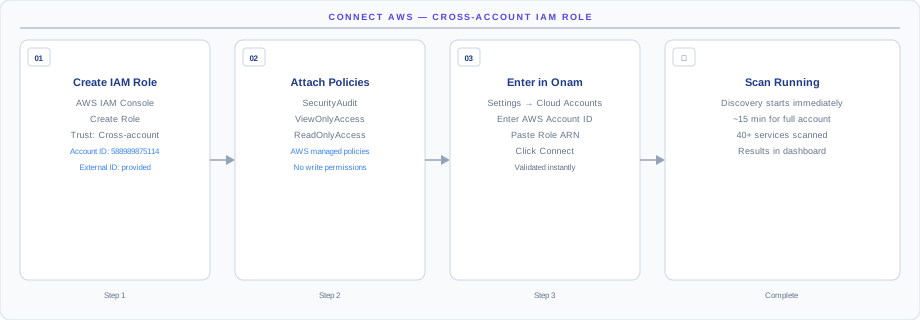
How the connection works
The diagram above shows the connection model end-to-end. Onam uses cross-account IAM role assumption — the same mechanism AWS recommends for third-party integrations. You create a role in your AWS account that trusts Onam's AWS account, protected by a unique External ID (which prevents the confused-deputy attack). Onam stores only a reference to that role ARN, and at scan time AWS STS issues short-lived credentials that Onam uses for read-only API calls.
- No long-lived credentials are stored anywhere. No access keys, no secrets — only the role ARN reference, held in AWS Secrets Manager and encrypted with KMS.
- Temporary credentials rotate every hour. AWS STS credentials expire within 60 minutes of issue, even if one were somehow exposed.
- Read-only is enforced by your IAM policy, not by Onam. You attach a read-only policy to the role you create — Onam cannot exceed what your policy allows.
How the connection stays read-only: the role carries onlySecurityAudit,ReadOnlyAccess, and a short list of additional read permissions — there is no Allow statement for any write, delete, or modify action, and AWS IAM enforces that boundary on every API call. Delete the role at any time and access ends instantly, with no orphaned credentials left behind.
Before you begin
- An AWS account with permission to create IAM roles and policies
- An Onam account with at least the
tenant_adminrole - Your Onam Platform Account ID and External ID — shown in the Onam console under Onboarding → Connect Cloud Account → AWS
An access-key connection option also exists for restricted evaluation environments, but the IAM role is strongly recommended — it is the only model in which no secret is ever exchanged.
Step 1 — Create the IAM role
Option A: Using the AWS Console
- Open the AWS IAM Console
- Navigate to Roles → Create role
- Select AWS account as the trusted entity type
- Select Another AWS account
- Enter the Onam Platform Account ID (shown in the Onam onboarding screen)
- Check Require external ID and enter the External ID shown in the console
- Click Next
Option B: Using the AWS CLI
# Replace PLATFORM_ACCOUNT_ID and EXTERNAL_ID with values from the Onam console
aws iam create-role \
  --role-name CSPMScannerRole \
  --assume-role-policy-document '{
    "Version": "2012-10-17",
    "Statement": [{
      "Effect": "Allow",
      "Principal": {
        "AWS": "arn:aws:iam::PLATFORM_ACCOUNT_ID:root"
      },
      "Action": "sts:AssumeRole",
      "Condition": {
        "StringEquals": {
          "sts:ExternalId": "EXTERNAL_ID"
        }
      }
    }]
  }'
Option C: Using CloudFormation
# cspm-role.yaml
AWSTemplateFormatVersion: '2010-09-09'
Description: Onam Read-Only Scanner Role

Parameters:
  PlatformAccountId:
    Type: String
    Description: Onam platform AWS account ID
  ExternalId:
    Type: String
    Description: External ID from the Onam onboarding screen

Resources:
  CSPMScannerRole:
    Type: AWS::IAM::Role
    Properties:
      RoleName: CSPMScannerRole
      AssumeRolePolicyDocument:
        Version: '2012-10-17'
        Statement:
          - Effect: Allow
            Principal:
              AWS: !Sub 'arn:aws:iam::${PlatformAccountId}:root'
            Action: sts:AssumeRole
            Condition:
              StringEquals:
                sts:ExternalId: !Ref ExternalId
      ManagedPolicyArns:
        - arn:aws:iam::aws:policy/SecurityAudit
        - arn:aws:iam::aws:policy/ReadOnlyAccess
      Policies:
        - PolicyName: CSPMAdditionalPermissions
          PolicyDocument:
            Version: '2012-10-17'
            Statement:
              - Effect: Allow
                Action:
                  - support:DescribeTrustedAdvisorChecks
                  - support:DescribeTrustedAdvisorCheckResult
                  - access-analyzer:ListAnalyzers
                  - access-analyzer:ListFindings
                  - guardduty:ListDetectors
                  - guardduty:GetMasterAccount
                  - securityhub:GetFindings
                  - securityhub:DescribeHub
                  - inspector2:ListFindings
                  - inspector2:ListCoverage
                  - macie2:GetMacieSession
                  - macie2:ListFindings
                Resource: '*'

Outputs:
  RoleArn:
    Value: !GetAtt CSPMScannerRole.Arn
    Description: Copy this ARN into the Onam onboarding screen
aws cloudformation deploy \
--template-file cspm-role.yaml \
--stack-name cspm-scanner-role \
--parameter-overrides \
PlatformAccountId=PLATFORM_ACCOUNT_ID \
ExternalId=EXTERNAL_ID \
--capabilities CAPABILITY_NAMED_IAMStep 2 — Attach the read-only policies
Attach these AWS managed policies to the role:
| Policy | ARN | Why required |
|---|---|---|
SecurityAudit | arn:aws:iam::aws:policy/SecurityAudit | Core security service scanning |
ReadOnlyAccess | arn:aws:iam::aws:policy/ReadOnlyAccess | Broad read access for resource discovery |
Plus the additional custom policy from Step 1 covering these AWS service-specific permissions:
| Category | Permissions | Why required |
|---|---|---|
| Advisor & Analysis | support:DescribeTrustedAdvisorChecks · access-analyzer:ListAnalyzers · access-analyzer:ListFindings | Read AWS Trusted Advisor findings and IAM Access Analyzer findings |
| Threat Detection | guardduty:ListDetectors · guardduty:GetMasterAccount · securityhub:GetFindings | Read GuardDuty threat findings and Security Hub aggregated findings |
| Vulnerability | inspector2:ListFindings · inspector2:ListCoverage | Read Inspector v2 vulnerability findings and coverage |
| Data Security | macie2:GetMacieSession · macie2:ListFindings | Read Macie sensitive-data discovery findings |
Each permission is read-only — no Create*, Update*, Delete*, or Put* actions are required.
Step 3 — Register the role in the Onam console
After creating the role, copy the Role ARN. It looks like:
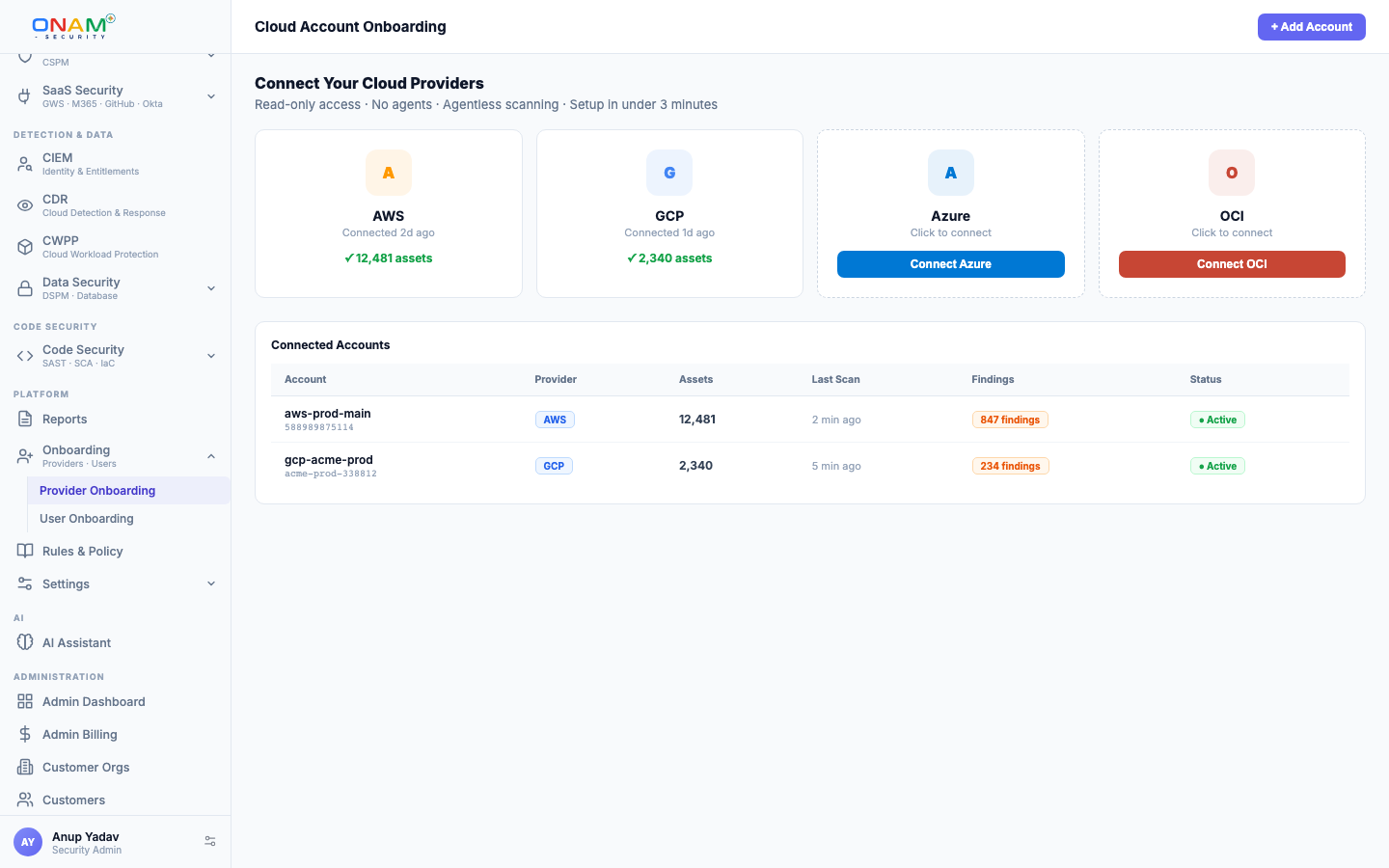
arn:aws:iam::123456789012:role/CSPMScannerRole- In the Onam console, navigate to Onboarding → Connect Cloud Account
- Select Amazon Web Services
- Paste the Role ARN
- Enter an Account Alias (a friendly name for this account)
- Select which Regions to scan (or select All)
- Click Validate Connection
Onam attempts to assume the role and verifies read access. A green checkmark means the connection succeeded.
Run your first scan
- Navigate to Onboarding → Cloud Accounts
- Click the account you just added
- Click Run Scan Now
- The scan typically completes in 15–60 minutes depending on account size
You receive an in-app notification and an email when the scan completes. Findings appear in the console graded by severity: Critical, High, Medium, Low, or Info.
Connect an entire AWS Organization
For AWS Organizations, deploy the IAM role to all member accounts automatically with CloudFormation StackSets:
# Deploy via AWS Organizations StackSets
aws cloudformation create-stack-set \
  --stack-set-name cspm-scanner-roles \
  --template-url https://s3.amazonaws.com/cspm-templates/cspm-role.yaml \
  --parameters \
    ParameterKey=PlatformAccountId,ParameterValue=PLATFORM_ACCOUNT_ID \
    ParameterKey=ExternalId,ParameterValue=EXTERNAL_ID \
  --capabilities CAPABILITY_NAMED_IAM \
  --permission-model SERVICE_MANAGED \
  --auto-deployment Enabled=true,RetainStacksOnAccountRemoval=false
This auto-deploys the role to all existing accounts in your organization — and to every new account the moment it is created. Register each role ARN in the Onam console (or use the bulk-import option on the onboarding screen).
What gets scanned
Onam evaluates 157 AWS services against 2,278 posture rules, plus 530 identity-focused CIEM rules — part of the 10,000+ rule registry that spans all seven supported clouds. New AWS services are added on a quarterly cadence.
| Category | Services scanned |
|---|---|
| Compute | EC2 Instances · Lambda Functions · ECS Tasks · EKS Clusters · Elastic Beanstalk · Fargate · Auto Scaling Groups |
| Storage & Data | S3 Buckets · EBS Volumes · RDS Instances · DynamoDB Tables · Redshift Clusters · ElastiCache · Aurora · DocumentDB |
| Network | VPCs · Security Groups · NACLs · Load Balancers (ALB/NLB/Classic) · CloudFront · Route 53 · WAF · Network Firewall · API Gateway |
| Security & Identity | IAM Users / Roles / Policies · KMS Keys · Secrets Manager · Certificate Manager · GuardDuty · Security Hub · CloudTrail · Config · Inspector |
| AI / ML | SageMaker · Bedrock · Comprehend · Rekognition · Textract |
Don't see a service you need? Email support@onam.io — most additions ship within 4 weeks.
The same role also powers behavioral threat detection: Onam's CDR engine ingests CloudTrail activity (via CloudWatch Logs and S3) and runs single-event rules, multi-event correlation scenarios, and statistical behavior baselines over it.
Troubleshooting and security FAQ
| Error | Cause | Fix |
|---|---|---|
AccessDenied: AssumeRole | Trust policy or external ID mismatch | Verify Platform Account ID and External ID match exactly |
Connection timed out | Role doesn't exist in the right account | Confirm the role ARN account ID matches the account you're connecting |
NoSuchBucket during scan | Region restrictions too narrow | Ensure selected regions include where your resources exist |
| Scan returns 0 resources | IAM permissions insufficient | Verify both SecurityAudit and ReadOnlyAccess are attached |
| IAM findings missing | Missing access-analyzer permissions | Attach the custom additional policy from Step 2 |
Security FAQ
Does Onam ever write to my AWS account? No. The IAM role includes only read permissions. There is no Allow statement for write, delete, or modify actions.
What if I revoke the role? Scanning stops immediately. No orphaned credentials remain — Onam stores only the role ARN, not credentials.
Can I restrict which services are scanned? Yes. You can create a custom policy that limits which services the role can access. Note that restricting access means those services will not appear in findings.
Next steps
- Connect Microsoft Azure — repeat the process for your next cloud; Onam covers all 7.
- CSPM — how the 2,278 AWS rules become prioritized findings.
- CDR — turn on CloudTrail-based threat detection for this account.
- Book a demo — walk through your first scan results with an Onam engineer.