Connect Microsoft Azure
This guide walks you through connecting an Azure subscription to Onam using a service principal with read-only access. You register an app in Microsoft Entra ID, create a client secret, assign the built-in Reader role, and paste the credentials into the Onam console. The connection is read-only: Onam never makes changes to your Azure environment.
Time to complete: ~20 minutes. Azure knowledge required: Microsoft Entra ID (Azure AD), IAM basics.
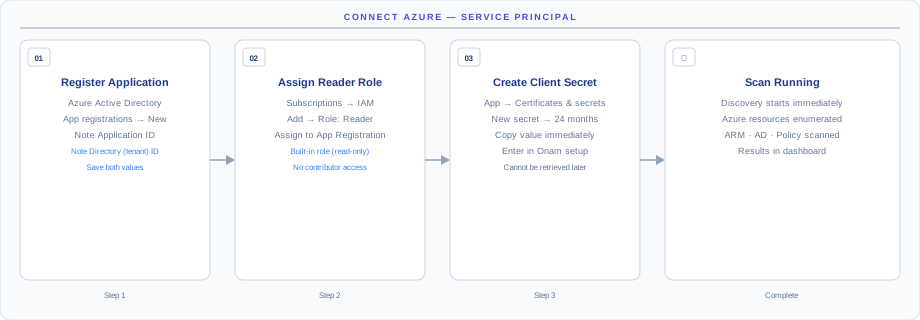
How the connection works
The diagram above shows the connection model end-to-end. Onam connects to Azure via a service principal in Microsoft Entra ID with the Reader role at subscription scope. You register an app, generate a client secret, assign Reader, and enter the credentials in the Onam console — Onam then authenticates via OAuth2 client credentials and reads resource configurations through the Azure Resource Manager API.
- Reader role only — Microsoft's built-in least-privilege read role. No write actions are possible.
- Scoped to the subscriptions you assign — Onam cannot see subscriptions you didn't explicitly grant Reader on.
- Client secret expires on the schedule you set — 24 months recommended, with a calendar reminder to rotate.
How the connection stays read-only: the service principal holds only the built-in Reader role plus read-only Microsoft Graph permissions (Directory.Read.All,Policy.Read.All,AuditLog.Read.All). Azure RBAC enforces the boundary on every API call — Onam cannot exceed the roles you assigned. The client secret is stored encrypted (AWS Secrets Manager with KMS) and you can revoke it in Entra ID at any time to sever access instantly.
Before you begin
- An Azure subscription with the
OwnerorUser Access Administratorrole - Permission to register applications in Microsoft Entra ID (Azure AD)
- An Onam account with at least the
tenant_adminrole
Step 1 — Register an app and create a client secret
Register the app (Azure Portal)
- Open Microsoft Entra ID
- Navigate to App registrations → New registration
- Name:
cspm-scanner(or any name you prefer) - Supported account types: Accounts in this organizational directory only
- Redirect URI: leave blank
- Click Register
- Copy the Application (client) ID and Directory (tenant) ID — you'll need these later
Register the app (Azure CLI)
# Create the App Registration
az ad app create --display-name cspm-scanner

# Get the App ID
APP_ID=$(az ad app list --display-name cspm-scanner --query '[0].appId' -o tsv)
echo "App ID: $APP_ID"

# Create a Service Principal
az ad sp create --id $APP_ID

# Get your Tenant ID
TENANT_ID=$(az account show --query tenantId -o tsv)
echo "Tenant ID: $TENANT_ID"
Create the client secret (Azure Portal)
- In your App Registration, navigate to Certificates & secrets
- Click New client secret
- Description:
cspm-scanner-secret - Expiry: 24 months (recommended — set a calendar reminder to rotate)
- Click Add
Create the client secret (Azure CLI)
# Create a client secret (valid for 2 years)
SECRET=$(az ad app credential reset \
  --id $APP_ID \
  --years 2 \
  --query password -o tsv)
echo "Client Secret: $SECRET"
Copy the secret value immediately — Azure shows it exactly once. If you lose it, generate a new secret; the old one keeps working until you delete it or it expires.
Step 2 — Assign the Reader role at subscription scope
Reader is the lowest-privilege built-in Azure role that grants read access to every resource type. Assigning it at subscription scope automatically covers every resource group and every resource within those groups.
| Scope | What the role grants | Why we recommend subscription scope |
|---|---|---|
| Subscription (recommended) | Read access to every resource group and resource in the subscription | One assignment covers everything; new resource groups automatically inherit |
| Resource group | Read access to that specific group only | Tighter scope — but you'll need to re-assign on every new resource group |
| Management group | Read access across multiple subscriptions | Best for multi-subscription orgs — assign once, covers all subs |
Using the Azure Portal
- Navigate to Subscriptions → select your subscription
- Go to Access control (IAM) → Add → Add role assignment
- Role: Reader
- Assign access to: User, group, or service principal
- Select:
cspm-scanner(your App Registration) - Click Review + assign
Using the Azure CLI
# Get your Subscription ID
SUB_ID=$(az account show --query id -o tsv)
echo "Subscription ID: $SUB_ID"

# Assign Reader role
az role assignment create \
  --assignee $APP_ID \
  --role Reader \
  --scope /subscriptions/$SUB_ID
Step 3 — Grant Microsoft Graph permissions
To scan Microsoft Entra ID resources (users, groups, app registrations, conditional access policies), grant three application-level Graph API permissions:
| Permission | GUID (for CLI) | What it enables |
|---|---|---|
Directory.Read.All | 7ab1d382-f21e-4acd-a863-ba3e13f7da61 | Read users, groups, and app registrations |
Policy.Read.All | 246dd0d5-5bd0-4def-940b-0421030a5b68 | Read conditional access and authorization policies |
AuditLog.Read.All | b0afded3-3588-46d8-8b3d-9842eff778da | Read Entra ID sign-in and audit logs |
Using the Azure Portal
- In your App Registration, go to API permissions → Add a permission
- Select Microsoft Graph
- Select Application permissions (not Delegated)
- Add
Directory.Read.All,Policy.Read.All, andAuditLog.Read.All - Click Grant admin consent (requires Global Administrator or Privileged Role Administrator)
Using the Azure CLI
# Add Microsoft Graph permissions
GRAPH_APP_ID="00000003-0000-0000-c000-000000000000"

az ad app permission add \
  --id $APP_ID \
  --api $GRAPH_APP_ID \
  --api-permissions \
    7ab1d382-f21e-4acd-a863-ba3e13f7da61=Role \
    246dd0d5-5bd0-4def-940b-0421030a5b68=Role \
    b0afded3-3588-46d8-8b3d-9842eff778da=Role

# Grant admin consent
az ad app permission admin-consent --id $APP_ID
Step 4 — Connect and run your first scan
- In the Onam console, navigate to Onboarding → Connect Cloud Account
- Select Microsoft Azure
- Fill in the four credential fields (table below)
- Enter an Account Alias (friendly name)
- Click Validate Connection
| Field | Where to find it |
|---|---|
| Subscription ID | az account show --query id -o tsv |
| Tenant ID (Directory ID) | App Registration → Overview |
| Application (client) ID | App Registration → Overview |
| Client Secret | The value you copied in Step 1 (shown once) |
Run your first scan
- Navigate to Onboarding → Cloud Accounts
- Click the subscription you just added
- Click Run Scan Now — the first scan typically completes in 15–60 minutes depending on subscription size
You receive an in-app notification and an email when the scan completes.
Multi-subscription setup
To connect multiple Azure subscriptions, repeat Steps 2–4 for each subscription. You can reuse the same App Registration — just assign the Reader role at each subscription scope. For Azure Management Groups (to cover all subscriptions at once):
# Assign Reader at management group scope
MG_ID="your-management-group-id"

az role assignment create \
  --assignee $APP_ID \
  --role Reader \
  --scope /providers/Microsoft.Management/managementGroups/$MG_ID
What gets scanned
Onam evaluates 112 Azure services against 3,319 posture rules, plus 202 identity-focused CIEM rules — the largest per-cloud rule set in Onam's 10,000+ rule registry. New services are added on a quarterly cadence.
| Category | Services scanned |
|---|---|
| Compute | Virtual Machines · AKS Clusters · Azure Functions · App Service · Container Instances · Virtual Machine Scale Sets |
| Storage & Data | Blob Storage · Azure SQL Database · Cosmos DB · Azure Database for PostgreSQL · Azure Database for MySQL · Data Lake Storage · Synapse |
| Networking | Virtual Networks · NSGs · Azure Firewall · Application Gateway · Front Door · DDoS Protection · Private Endpoints |
| Identity & Security | Entra ID Users and Groups · App Registrations · Managed Identities · Key Vault · Conditional Access Policies · Defender for Cloud · Sentinel Workspace |
| Monitoring | Diagnostic Settings · Activity Logs · Monitor Alerts · Log Analytics Workspaces |
The same service principal also powers behavioral threat detection: Onam's CDR engine ingests Azure Monitor activity logs (exported to Blob Storage) and correlates them into threat findings.
Troubleshooting and secret rotation
| Error | Cause | Fix |
|---|---|---|
AuthenticationFailed | Wrong tenant ID or client ID | Verify values from App Registration Overview page |
InvalidClientSecret | Secret expired or copied incorrectly | Regenerate the client secret in Entra ID |
Authorization_RequestDenied | Reader role not assigned | Assign Reader role at subscription scope (Step 2) |
| No Entra ID resources in findings | Graph permissions not granted | Complete Step 3 and grant admin consent |
InsufficientPrivileges | Admin consent not granted | A Global Admin must grant admin consent for Graph permissions |
Rotating the client secret
Client secrets expire. Set a calendar reminder before expiry:
# Create a new secret before the old one expires
NEW_SECRET=$(az ad app credential reset --id $APP_ID --years 2 --query password -o tsv)

# Update the credential in the Onam console:
# Onboarding → Cloud Accounts → [your account] → Edit → Update Secret
Next steps
- Connect Google Cloud Platform — repeat the process for your next cloud; Onam covers all 7.
- CIEM — analyze Entra ID identities and effective permissions across your subscriptions.
- CDR — turn on activity-log threat detection for this subscription.
- Book a demo — walk through your first scan results with an Onam engineer.